

Unified Ticket Chat in Ticketing as a Service

Updated: Sep 4
When your team works on a support ticket, conversations often end up scattered across emails, chat threads, and different apps. That means details get lost, context gets forgotten, and productivity takes a hit.
With Unified Ticket Chat inside Ticketing as a Service, you finally get one streamlined place to talk and work, all within Microsoft Teams. It brings real-time conversation, ticket context, and collaboration together, right where your team already communicates.
Granting Admin Permission
Before your organization can start using Unified Ticket Chat, a Teams administrator must grant the app the required permissions.
Why do we need these permissions? Simple, Ticketing as a Service only requests the permissions strictly necessary to deliver a smooth, integrated experience, nothing more. These permissions allow the app to create dedicated chats, post updates, and keep everything in sync between the ticket and your Teams environment.
Creating Your First Chat
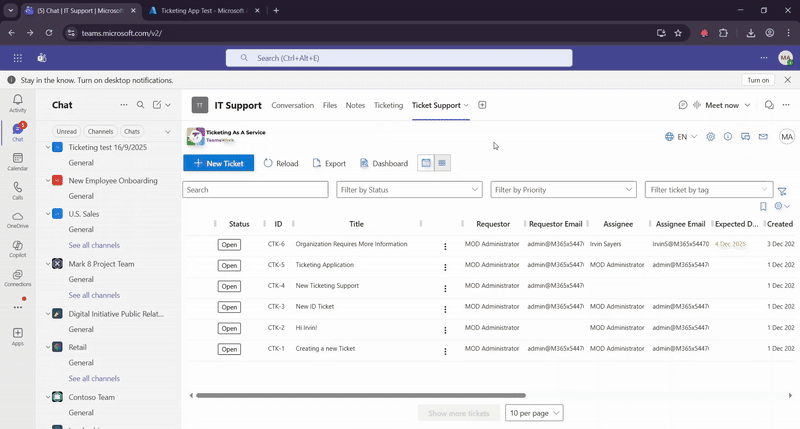
Unified Ticket Chat introduces a simple but powerful concept: One chat per ticket.
The moment you start a chat from a ticket, the app automatically creates a dedicated Microsoft Teams chat linked to that specific ticket. This ensures the requestor and the assignee share one single conversation thread, complete with ticket details, attachments, and the full story of what’s happening, so everything stays organized in context.

Default Chat Participants & Managing Access
By default, each ticket chat includes:
The ticket assignee
The ticket requestor
But we know that support is dynamic. You might need to loop in a manager or a subject matter expert. You have full control over who joins the conversation directly through the ticket fields:
Adding People: You can easily add more participants by selecting them in a People Picker custom field right on the ticket. Alternatively, simply adding someone as a Requestor or Assignee will automatically add them into the chat.
Removing People: If someone no longer needs to be involved, you don't need to kick them out of the chat manually. Just remove them from the ticket, and the system handles the rest.
Receive Ticket Activities Directly in the Ticket Chat
Before you start the chat, you can choose to receive ticket notifications within the chat.
1. Notifications go to dedicated ticket chat

Ticketing automatically sends ticket notifications (like status changes or SLA alerts) directly into the Microsoft Teams chat thread created for this ticket.

This keeps everyone aligned without having to open the ticket every time. The chat becomes a real-time activity log and communication space combined.
2. Notifications go to the Ticketing as a Service chatbot

In this case, ticket notifications are delivered to the Ticketing as a Service chatbot instead of the dedicated ticket chat.

3. Chatting from the Ticket
If you prefer working inside the ticket interface, you can chat right from there. Any message you send from the ticket’s chat area instantly appears in the dedicated Teams chat as well.
Your team can choose whichever interface they prefer, and nothing gets lost.


4. Chatting from Microsoft Teams
Of course, you can also reply directly in Microsoft Teams. Whether someone responds from Teams or from within the ticket, everything stays synchronized. The conversation remains consistent and easily accessible from both sides.
This flexibility ensures conversations follow your workflow, not the other way around.
Inviting External Users to Your Organization
Need to include someone outside your organization, like a customer or partner? Because this is a native Microsoft Teams chat, you can invite external users just like any other Teams conversation.

This is especially valuable for Managed Service Providers, who can collaborate with clients on support tickets without leaving Teams or switching to another platform.
Limitations Due to Organization Settings
Keep in mind that some organizations restrict external chat for security or compliance reasons.
If your environment doesn’t allow external users, this is a Microsoft Teams policy, not a limitation imposed by Ticketing as a Service.
By bridging the gap between your help desk and your daily communication tool, the Unified Ticket Chat feature transforms how you resolve issues. No more lost emails, disjointed threads, or constant toggling between windows, just one clear, synchronized history that helps you close tickets faster.
Whether you are an internal IT team coordinating with HR or an MSP supporting external clients, this feature ensures everyone stays on the same page without leaving the flow of work.
Permissions Requested for Chat
Unified Ticket Chat only requests the Microsoft Graph permissions it needs to create chats, keep members in sync, and post updates. Here is what each permission does and why it is required:
Chat.Create: Used to create a new one-to-one or group chat for a ticket.
Chat.ReadWrite: Used to read chat history and send messages on behalf of the signed-in user. This is required for the full chat experience.
ChatMember.ReadWrite: Used to add or remove chat members when the ticket’s requestor or assignee changes.
Application.Read.All: This does not provide access to chat content. During setup, it is used to locate the Ticketing application and Microsoft Graph service principals, and to identify the ChatMember.ReadWrite.All application role.
AppRoleAssignment.ReadWrite.All: This also does not provide access to chat content. It allows the setup process to automatically assign ChatMember.ReadWrite.All to the Ticketing application. This enables the backend to update chat members even when no user is signed in.
TeamsWork is a Microsoft Partner Network member, and their expertise lies in developing Productivity Apps that harness the power of the Microsoft Teams platform and its dynamic ecosystem. Their SaaS products, including CRM as a Service, Ticketing as a Service and Checklist as a Service, are highly acclaimed by users. Users love the user-friendly interface, seamless integration with Microsoft Teams, and affordable pricing plans. They take pride in developing innovative software solutions that enhance company productivity while being affordable for any budget.


Comments