

Group Visibility in CRM as a Service

Updated: May 29
In CRM As A Service, visibility settings determine who can see and interact with newly created items from Contacts and Leads to Opportunities and Organizations. These settings help teams collaborate effectively while keeping sensitive data under control.
This article explains how Group Visibility works in CRM As A Service, including the differences between private, group, and organization visibility, and how groups influence access. You’ll learn how to apply these rules in real scenarios to ensure the right people have access at the right time, without unnecessary complexity.
Note: Group Visibility are available on certain plan. Please check our pricing plan.

Configure Default Visibility Setting
CRM Owners can configure default visibility for each item type in CRM As A Service. This determines how new items are shared at creation time.

1. Private
Private is the most restrictive visibility setting. When an item is set to Private, it can be accessed by:
The item owner
Group Owners (only for private items in their group)
Regular group members do not have access unless they are added as Collaborators. This visibility level is best suited for early-stage leads, sensitive opportunities, or draft records.
2. Group
Group visibility enables structured collaboration within a team. When an item is set to Group, access is granted to:
The item owner
All group members
Group Owners
This works well for regional teams, departments, or functional groups that need shared visibility. If the owner belongs to a group with only one member, Group visibility behaves the same as Private.
If a user belongs to multiple groups (as a member or owner), they can set a preferred group when creating an item.

3. Organization
Organization visibility makes an item available to everyone in the CRM. CRM As A Service supports two Organization modes:
Organization (Read): All users can view the item
Organization (Write): All users can view and edit the item
This setting is commonly used for shared organizations, global contacts, or reference data.
Configure Visibility Manually
Item owners can manually update visibility for items they own directly from the item page. From the item page—such as a Lead, Opportunity, Contact, or Organization—visibility can be updated at the top of the page. Any change takes effect immediately and follows the same Group Visibility rules.

Example Use Case
To see how Group visibility works in practice, consider how Contoso Teams structures its regional sales teams. The company has two sales groups—US West Sales and US East Sales—each responsible for their own territories.
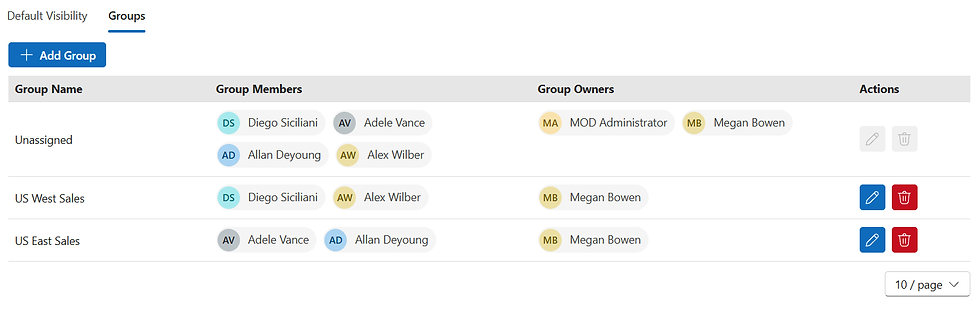
Use Case 1: Group Visibility Within a Team
Alex, a member of the US West Sales team, creates a Lead for a potential customer in the western region and sets the visibility to Group. Because the Lead follows group visibility rules, it is automatically shared with everyone in Alex’s group.
Alex and Diego (US West Sales) can access the Lead
Allan and Adele (US East Sales) cannot see the Lead

Use Case 2: Private Visibility with Group Owner Access
Allan, a member of US East Sales, creates a Lead and sets its visibility to Private. Even though Adele belongs to the same group, she cannot access the Lead because Private visibility restricts access to the owner.
Allan can access the Lead
Adele cannot access it, despite being in the same group
Alex cannot access it, because he is in the different group


Use Case 3: User Belonging to Multiple Groups
As a manager, Megan belongs to both US West Sales and US East Sales. When she creates a Lead, she is prompted to set a preferred group. The Lead’s Group visibility then follows the selected group.
If Megan selects US West Sales, Alex and Diego can access the Lead
Allan and Adele cannot access it


Conclusion
Visibility and Groups are core building blocks of secure collaboration in CRM As A Service. When configured correctly, they ensure that the right people have the right access at the right time—without adding complexity for users.
With clear defaults and well-structured groups, teams can focus less on permissions and more on closing deals, resolving cases, and building strong customer relationships.
TeamsWork is a Microsoft Partner Network member, and their expertise lies in developing Productivity Apps that harness the power of the Microsoft Teams platform and its dynamic ecosystem. Their SaaS products, including CRM as a Service, Ticketing as a Service and Checklist as a Service, are highly acclaimed by users. Users love the user-friendly interface, seamless integration with Microsoft Teams, and affordable pricing plans. They take pride in developing innovative software solutions that enhance company productivity while being affordable for any budget.


Comments