

How to Delete a Ticket in Ticketing as a Service

Updated: Oct 7
You can now delete a ticket in Ticketing as a Service. This is a new capability, and it marks a real shift from how the app worked before, when tickets could never be removed. You can now delete tickets directly, either one at a time or in bulk.
Deletion is permanent. Once a ticket is deleted it cannot be restored, it disappears from your ticket list, and it can no longer be opened through its link, the API, or a chatbot notification. You get a clean way to clear out duplicates and mistaken tickets while the rest of your records stay intact.
Who can delete a ticket
Only a Ticketing Owner can delete a ticket. Users without this role never see the "Delete Ticket" option, either in the ticket menu or in the bulk update panel. This keeps deletion controlled and accountable while still giving your Ticketing Owners the flexibility they asked for.
Delete a single ticket
You can delete one ticket from two places, and both lead to the same confirmation step.
From the ticket form:
Open the ticket you want to remove.
Select the three-dot menu in the top-right toolbar.
Choose Delete Ticket.

From the ticket list:
Find the ticket in your list.
Click the three-dot menu beside the ticket title.
Select Delete Ticket at the bottom of the menu.

A confirmation dialog then appears before anything is removed. Confirm to delete the ticket, or cancel to keep it. Once confirmed, the ticket is deleted and you return to the ticket list.
Delete multiple tickets at once
To remove several tickets together, use the Bulk Update panel.
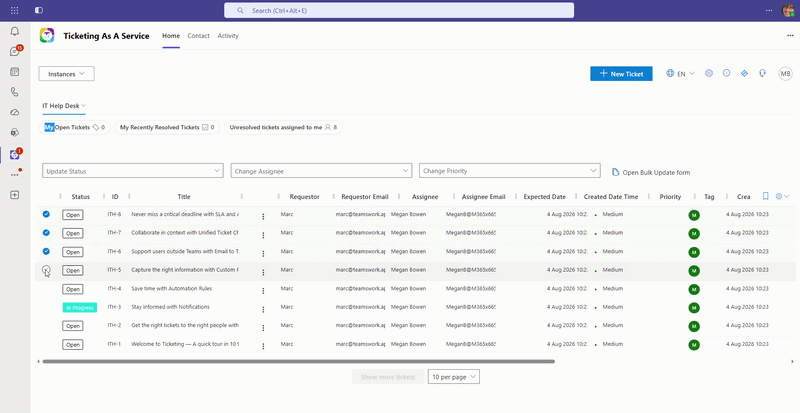
Select the tickets you want to delete from the list.
Open the Bulk Update panel on the right.
Check the Delete Tickets box.
What happens after you delete a ticket
A deleted ticket is removed from view and from all access, with a few behaviors worth knowing:
Quota is not refunded: deleted tickets still count against your plan's monthly quota, so removing them does not free up space.
Ticket IDs stay in sequence: the running ticket number is unaffected, and the next ticket keeps counting up from the last ID.
Access is closed: a deleted ticket cannot be opened through its URL, the API, or a chatbot notification.
Alerts stop: a deleted ticket no longer triggers SLA timers, escalations, expected-date reminders, or idle notifications.
If someone opens a deleted ticket by its link, they see a "This ticket does not exist" message. API requests return a 404 with "Ticket not found or access denied", and deleted tickets no longer appear in Get All Tickets responses.
When to cancel or archive instead
Delete a ticket only when you want it gone for good. If you need to keep the record, choose one of these options instead:
Cancel the ticket: close it with a "Cancelled" resolution so it stays in your records but is clearly marked as inactive, and your team knows it needs no follow-up.
Archive the instance: archive a ticketing instance to clear an entire project or service desk from your active view while keeping all its data retrievable.
Because deletion is permanent and still counts toward your quota, cancelling or archiving is the better choice whenever the data might matter later.


Comments