

Edit OneDrive Documents in Microsoft Teams CRM

Updated: Oct 8
Most sales teams still juggle documents between laptops, cloud drives, and CRM systems that store separate copies of the same file. A simple update turns into downloading, editing, re-uploading, and managing multiple versions. It doesn’t take long before proposals, contracts, and customer files become scattered and hard to trust. In CRM as a Service, documents aren’t locked in a separate system. Everything connects directly to your Microsoft 365 environment, so teams update files instantly in Microsoft Teams using a single, up-to-date document stored in OneDrive or SharePoint.
TeamsWork Cloud Storage vs. Your Tenant Cloud Storage
CRM as a Service offers two ways to store documents. TeamsWork Cloud Storage provides a simple, ready-to-use option where files are stored in TeamsWork’s cloud and automatically linked to your CRM records with no setup required.
With the new support for your Microsoft 365 tenant storage, documents can now be saved directly in your SharePoint or OneDrive environment. Files stay accessible from both CRM and OneDrive without duplication, ensuring a clean, synchronized storage experience.
Configure Your Cloud Storage
CRM as a Service lets organizations choose between TeamsWork storage or your Microsoft 365 tenant storage directly in the CRM settings. Once configured, the CRM automatically maps documents to the correct location in your SharePoint or OneDrive structure. No manual linking or folder creation needed.

Organization of Folder Structure per Entity
CRM as a Service automatically organizes your documents using a structured folder hierarchy for every entity—Leads, Opportunities, Cases, Contacts, and more. This ensures documents stay cleanly organized, easy to navigate, and consistently grouped across all teams.
Each time a new record is created in CRM, the system automatically generates a matching folder in your cloud storage. A new Lead creates a Lead folder, a new Opportunity creates an Opportunity folder, and so on. This automated setup removes the need for manual folder creation and keeps your storage aligned with your CRM data at all times.
Quotation Linked to an Opportunity
When a quotation is created, its folder doesn’t stand alone. Instead, it is automatically placed under the corresponding Opportunity’s folder. This keeps all related documents—proposals, quotations, internal notes, and supporting materials—together in one logical location, avoiding scattered files across different directories.
Use Your Cloud Storage in CRM
Once everything is configured, using your storage inside CRM becomes natural.
Access the Attachments Tab in CRM
Every record includes an Attachments section where all documents live—whether uploaded, created, or synced from OneDrive.

Create Folders to Organize Documents
Users can build subfolders directly inside CRM to match workflows.

Drag and Drop New Documents
Upload files instantly by dragging them into the CRM interface.
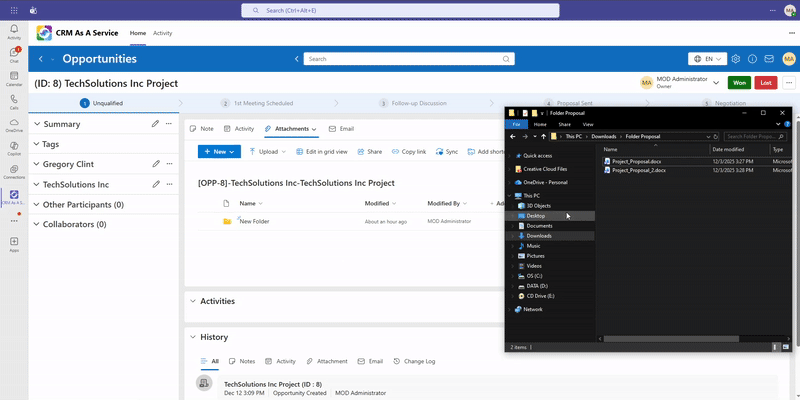
Create New Documents from CRM
Start a new Word, Excel, or PowerPoint file right from the CRM interface. Documents open using Microsoft 365 online, and they’re saved automatically in your tenant storage.

Edit Documents from CRM
Documents open directly in Teams or browser-based Office apps. No downloads. No duplicates. No version confusion.

Access Your Documents from CRM or OneDrive
Because all documents are stored in your Microsoft 365 tenant, they remain accessible wherever you work. Files can be opened and managed directly from CRM, OneDrive, SharePoint, or Microsoft Teams, with changes automatically synced across all locations. This flexibility allows teams to work from the tool that feels most natural, without worrying about version conflicts or duplicated files.
Access Security & Default Configuration
An initial setup step is required to enable cloud storage access. Administrators need to grant the necessary app permissions in the settings so CRM as a Service can securely connect to SharePoint or OneDrive.


Comments