

How to Capture the Browser Log Information about TeamsWork Apps

Updated: 6 days ago
Hi All,
If you encounter an issue when using our apps, including our ticketing tool for Microsoft Teams, you can send us log information to help our developers fix it.
First, check if your app has a Get Help picto (icon) in the menu. If it does, open it and send us the system information from there. This is the quickest way to give our developers what they need.

If the Get Help picto is not available in your menu, follow the steps below to capture the browser log and other system information manually.
Note: Log generates a lot of information, so it is important to empty the console log right before executing the action that triggers the issue.
How to Get Browser Log
1. Open your favorite browser and navigate to teams: teams.microsoft.com and Login to Teams
2. Open the Ticketing / Checklist instance
3. Open the developer console panel
Here are how to open the developer console panel for some browsers:
Chrome:
Right-click on the page and select "Inspect" OR press "Ctrl + Shift + I"

Firefox:
Right-click on the page and select "Inspect Element" OR press "Ctrl + Shift + I"
Microsoft Edge (Chromium-based):
Right-click on the page and select "Inspect" OR press "Ctrl + Shift + I"
Safari:
Enable "Develop" menu by opening "Preferences" and checking the box next to "Show Develop menu in menu bar"
Select "Develop" from the menu bar and select "Show Web Inspector"
Opera:
Press "Ctrl + Shift + I" OR "Ctrl + Shift + C"
4. Navigate to the "Console" tab in the developer panel:
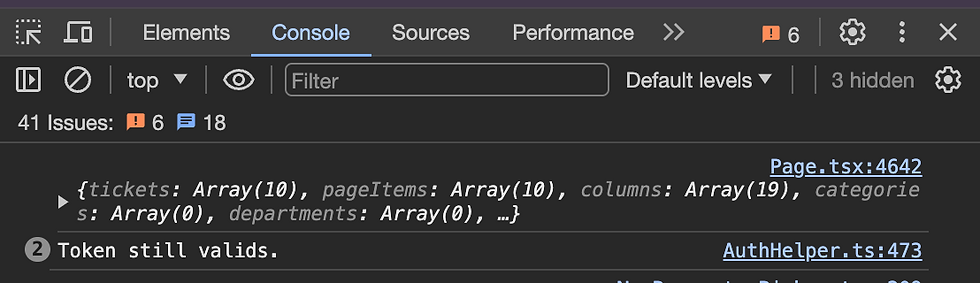
5. Right before executing the actions that you want to record / that trigger the issue, In the Developer Console panel, right click in the console and "Clear console" content

6. Do the steps / actions that you want to record / cause the error
7. When steps are finished, In the Developer Console panel, right click in the console and then select "Save as"

8. Save the file as the default extension (.log)
9. After that, click the issue panel.

10. When the Issue panel is open, take a screenshot of that panel and send the screenshot, along with the log file from step 8

How to get Instance Link and Instance ID
To get the link, first open Microsoft Teams in your web browser by visiting http://teams.microsoft.com.
Then, navigate to the ticketing instance where you encountered the Email to Ticket issue.

Right-click on the instance tab and select "Open in a new window."

Finally, copy the URL from the new window — this is your instance link.

Need further assistance?
If you need help at any point during the process or if you're unsure whether your recordings captured the issue correctly, feel free to reach out to our support team. Sharing browser logs of the issue will help us diagnose the problem more efficiently and provide a quicker resolution. We're here to help!


Comments