

Personal App and Managing Instances in Ticketing as a Service

Updated: Aug 19
Ticketing as a Service now has a dedicated documentation page. For the complete reference, visit the Ticketing as a Service documentation.
Introducing an exciting feature in Ticketing as a Service: the Personal App. Now, you can consolidate all your tickets across multiple instances into one convenient view, making ticket management easier than ever before.
All Instances View All Instances - Setting Create Personal Instance Archive and Restore an Instance Delete an Instance (permanent action!)
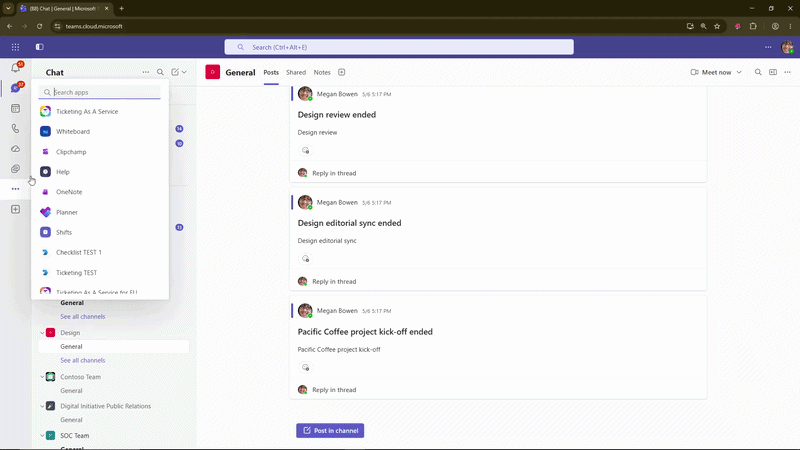
Discovering the Personal App
If you never used the personal tab, look for Ticketing as a Service in the left navigation menu and then pin the App, so it will always be visible in your navigation bar.

Note: A recent Microsoft Teams update requires a Teams Administrator to grant permission for users to pin apps. If you can't see this option, please check with your IT admin. https://learn.microsoft.com/en-us/microsoftteams/teams-app-setup-policies
What’s New: A Modern, Smarter Personal App for Ticketing
We’ve given the Ticketing as a Service Personal App a full makeover, bringing not just a fresh, modern interface, but also powerful enhancements that help you work faster and smarter.
Expanded Ticket View: The updated layout makes better use of screen space, allowing you to see more tickets at a glance.
More Columns, More Clarity: We’ve added more contextual information directly to your ticket list, including status, assignee, category, and custom fields.
Smarter Filtering: Previously limited to simple search, the Personal App now includes powerful filtering options. You can filter tickets by status, priority, category, or assignee.
All Your Instances, One Unified View
The All Instances tab gives you a consolidated ticket list that spans every Ticketing instance you belong to. Whether you're an owner of three helpdesks or a member across multiple teams, you get a single, filtered view of everything that's relevant to you.
All Instances Setting
The Personal App gives you a single place to configure all the Ticketing instances you own. To open it, go to the All Instances tab and click the Gear icon in the top-right corner. From here, you can configure all your instances.

Create new Personal Instance (as opposed to a Channel Instance)
You can create a new personal instance from the Personal App settings, under the Instances tab. You can create as many instances as your organization needs for IT, HR, Operations, or any other team.

In addition, you can also add an instance that is already set up in a channel. See How to Add Additional Ticketing Instance in Microsoft Teams for the full guide.
Archive and Restore an Instance
You can archive an instance you no longer need, and restore it later whenever you want to use it again.

Delete an Instance (permanent action!)
You can also delete an instance. Deleting an instance is permanent, so it cannot be restored.
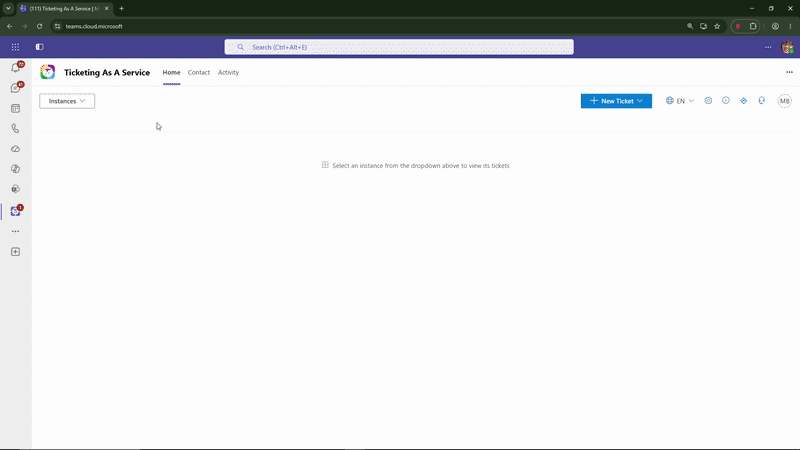
Navigate Across Instances Without Leaving the App
Each instance you're part of can be displayed it its own tab in the Personal App. Switch between your helpdesks, IT queues, and support boards with a single click. Every tab loads its own ticket list, KPI summary, and action buttons independently, so context switches are instant and clean.

Creating a Ticket from Personal App
You can create tickets in any instance you are a member of without the need to navigate to the corresponding ticketing instance.

Tracking Tickets from Personal App
Assuming your IT manager needs to communicate with the IT staff to restart the server. With Personal Tab, the IT manager (Megan) can create a ticket.
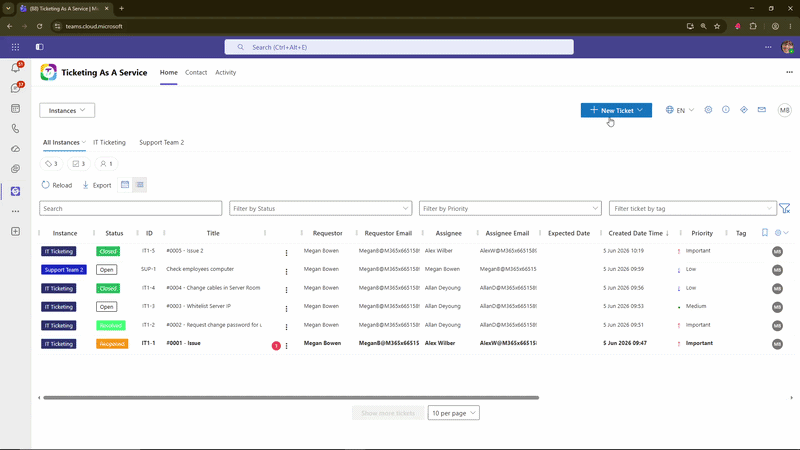
The IT staff (Alex) can notice the ticket,

And resolve the ticket from contextual menu.

The IT manager (Megan) can easily see that the ticket is now on the resolved side, which make it very simple for the manager to monitor all resolved ticket.

External Instance: Manage Multiple Tenants from One Dashboard
If you’re an MSP or IT admin responsible for multiple Microsoft 365 tenants, the update adds powerful multi‑tenant ticketing control right in your Personal App. Previously, the app let you view tickets across all your internal instances; now you can add external ticketing instances via API. Note this requires professional plan or above to use.
Kindly check out this blog about the MSP Experience.
Accessing the Personal App for guest users (Workaround)
If you don't have access to the personal app, another way to display it is by creating a new website tab in channel, and use this URL: https://teams.microsoft.com/l/entity/aa6b770e-6b8c-4096-9648-5239295ecadc/tenantId={TenantId}
You can find your Tenant ID by following the step-by-step guide in the "How to get Instance Link and Instance ID" section here

Get ready to take your ticket management to the next level with Ticketing as a Service Personal App. Start your free trial and unlock the power of simplified, yet efficient ticket handling.
TeamsWork is a Microsoft Partner Network member, and their expertise lies in developing Productivity Apps that harness the power of the Microsoft Teams platform and its dynamic ecosystem. Their SaaS products, including CRM as a Service, Ticketing as a Service and Checklist as a Service, are highly acclaimed by users. Users love the user-friendly interface, seamless integration with Microsoft Teams, and affordable pricing plans. They take pride in developing innovative software solutions that enhance company productivity while being affordable for any budget.



Comments