

Microsoft Teams for Small Business: The Complete Guide

Updated: Sep 22
Microsoft Teams gives your whole team chat, video meetings, and file sharing in one app, free to use on its own or bundled into a Microsoft 365 plan you might already be paying for. You might already be covered for more than you realize, or about to hit a wall: support requests pile up with no owner, deals fall through the cracks in a shared spreadsheet, and Planner can't do what dedicated software is built for.
Here's the real breakdown of Microsoft Teams for small business: what's included at each pricing tier, how to get set up correctly from day one, and the point where native tools stop covering what your business needs.
What Microsoft Teams includes for your business
Every plan, including free, includes chat, video meetings, file storage, and basic task tools.
Communication and collaboration
Everyone talks through channels and chat. Standard channels are open to the whole team, while private channels restrict access to just the people who need it, like a leadership group or a single client project. An @mention notifies a specific teammate directly, so a request doesn't get buried in a busy channel.
Video meetings include screen sharing and live captions on every plan, with virtual whiteboards added on paid plans. Loop components let your team co-edit a checklist, table, or paragraph inside a chat message, useful for something like drafting a reply to a customer complaint together instead of passing a document back and forth over email.
Worth setting up from day one:
Create a channel per project or client instead of routing everything through one general feed.
Reserve the general channel for company-wide announcements only, so it doesn't turn into noise.
Turn on live captions by default for anyone who multitasks or steps away during calls.
Document sharing
Files follow the same channel setup. Every file shared in a channel saves automatically to a connected SharePoint or OneDrive folder, so nothing lives only in someone's inbox. Version history keeps every past version, so you can undo an accidental edit without hunting for the "real" copy. File permissions match channel membership, so there's no separate access list to maintain.

A couple of habits that pay off:
Upload files directly to the channel's Files tab instead of attaching them to chat messages.
Check who's actually in a channel before assuming its files are private.
Get in the habit of checking version history before assuming an edit is gone for good.
Task management with Planner and Approvals
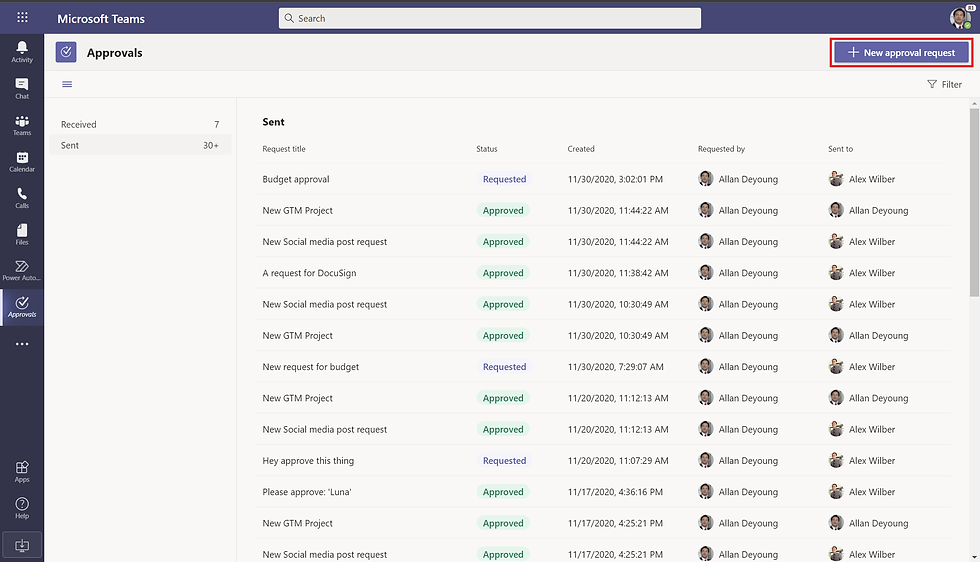
Two built-in apps handle basic task tracking. Planner organizes work into Kanban boards, with buckets you define yourself: by project phase, by team member, or by priority. Approvals routes a request like a PTO day or an expense reimbursement through a simple yes-or-no workflow, instead of a reply-all email chain. Both come standard on a business-tier plan.
Two habits worth building in:
Name Planner buckets after your actual workflow stages, not generic labels like "To Do."
Route recurring requests, like PTO or expenses, through Approvals instead of email so there's a paper trail.
Set a due date on every task. Planner's dashboard view only earns its keep once dates are filled in.
Beyond what's built in, Teams also supports a wider marketplace of productivity apps for Microsoft Teams that integrate directly into the Teams interface.
How to set up Microsoft Teams for your business
Getting up and running takes a handful of steps:
Sign up for a Microsoft 365 plan that includes Teams, or Teams Essentials as a standalone option, and verify your business domain so email addresses and sign-in match your company name instead of a generic outlook.com account.
Create your teams, structured around departments, projects, or client accounts, whichever matches how your business actually works. Whoever creates a team becomes its owner by default, with the ability to add members and manage settings, so decide early who holds that role for each one.
Set up channels inside each team for specific topics, so conversations don't collapse into one undifferentiated feed. A general channel for company-wide updates plus two or three topic-specific ones is usually enough for a small team to start.
Hold a short training session so your team knows where things live before you roll it out for real, rather than figuring it out mid-workday.
Add the apps you actually need, starting with Planner or Approvals, and layering in dedicated apps later as specific functions outgrow what's built in. Adding a third-party app generally requires admin approval inside Teams, so you should decide who handles those requests before you get started.
Most of this takes an afternoon. The step people skip is the last one, and it's usually the one that matters most six months in.
Microsoft Teams cost for your business
Microsoft splits Teams pricing for business into three tiers to choose from, and the free one doesn't expire or convert to a paid trial. You can keep using it for as long as you need.
Plan | Price | What you get |
|---|---|---|
Teams Free | $0 | Chat, video meetings capped at 60 minutes and 100 participants, 5GB storage per user |
Teams Essentials | $4/user/month, billed annually | Longer meetings, more storage, no business email or admin controls |
Microsoft 365 Business Basic | $7/user/month, billed annually | Adds business email, 1TB storage per user, SharePoint, OneDrive, and web/mobile Office apps |
Note: Prices may change. Please refer to Microsoft's official pricing page for the most current rates.
If you already have email and file storage elsewhere, Teams Essentials alone often does the job. If you're starting from scratch, Business Basic usually works out cheaper than buying email and storage separately.
What native Microsoft Teams tools can't do for a growing business
Plenty of guides will tell you to skip dedicated software and just run everything through Lists, Planner, and Approvals, and free tools like these can get you pretty far.
Here's where you'll hit a wall:
Lists is a shared spreadsheet. It won't move a deal to the next stage, remind you a follow-up is late, or flag a support ticket that's about to blow its response time.
Planner has no concept of a service-level agreement or a ticket queue.
Approvals handles one request at a time. It can't run a sales pipeline with stages and deal values.
None of them can generate an invoice.
A support request posted in a regular Teams channel doesn't have an owner or a due date by default, so it's easy for someone to miss it or assume someone else is handling it. That's the point where you need software built for one job specifically: customer support, sales, or billing.
Adding dedicated business apps to Microsoft Teams
When you hit that point, you can add a purpose-built app for each function and keep working out of the same Teams client every day.
Support and ticketing
A Microsoft Teams ticketing system gives support requests an owner and an alert when one goes idle or misses its due date, so nothing sits in a channel unanswered. Ticketing as a Service starts at $8.75 per organization per month, billed per org rather than per agent, so a five-person support team and a fifteen-person one pay the same price. Full SLA tracking and automatic ticket assignment come in on the higher-tier plans once your ticket volume grows enough to need them.
Sales and customer relationships
Replacing the spreadsheet nobody fully trusts, a native Microsoft Teams CRM gives you a real sales pipeline with stages, deal values, and contact history. Reps update deals from inside Teams instead of switching to a separate tab or app.

Recurring tasks and checklists
Onboarding, audits, and safety inspections turn into templates you reuse with a checklist app built for Microsoft Teams, instead of rebuilding the same task list by hand every time.
All of TeamsWork's apps are priced per org instead of per user, so adding one doesn't multiply your bill the way another per-seat subscription would: a ten-person team and a fifty-person team pay the same rate either way. For a small business, that's the difference between your software costs staying flat and them creeping up every time you hire, bring on a seasonal contractor, or add another department.
FAQ
Is Microsoft Teams actually free for a small business?
Yes, the free tier has no expiration date, covering chat, video meetings up to 60 minutes with 100 participants, and 5GB of storage per user. It doesn't include business email or admin controls, which is where the paid tiers come in.
Do I need Microsoft 365 to use Microsoft Teams, or can I run it standalone?
Teams runs standalone through Teams Essentials at $4 per user per month, and you'd only need the fuller Microsoft 365 Business Basic plan if you also want business email, SharePoint, and the web versions of Office apps.
Is there training available for small teams new to Microsoft Teams?
Microsoft provides built-in guided tours and a training hub for new users, and most teams pick up the basics of chat, channels, and meetings within their first week of regular use.
How many people can use Microsoft Teams on a small business plan?
Teams Essentials and Microsoft 365 Business Basic both support up to 300 users, which covers the vast majority of small businesses. Pricing on these plans is per user, so your monthly bill scales directly with headcount, unlike the per-organization pricing you'll see on some dedicated Teams apps.
Is Microsoft Teams secure enough to trust with customer data?
Yes. Microsoft Teams includes data encryption for meetings, chats, calls, and files, along with Entra ID for identity and access management, the same security backbone used across Microsoft 365. Dedicated apps you add on top, like Ticketing as a Service, carry their own Microsoft 365 Certification for security and compliance, so the same standard extends to whatever data flows through them.
TeamsWork is a Microsoft Partner Network member, and their expertise lies in developing Productivity Apps that harness the power of the Microsoft Teams platform and its dynamic ecosystem. Their SaaS products, including CRM as a Service, Ticketing as a Service and Checklist as a Service, are highly acclaimed by users. Users love the user-friendly interface, seamless integration with Microsoft Teams, and affordable pricing plans. They take pride in developing innovative software solutions that enhance company productivity while being affordable for any budget.


Comments