

Webhook Documentation
For Ticketing As A Service
Welcome to the Webhook Documentation for Ticketing as a Service! This comprehensive developer's guide is your key to seamlessly integrating Ticketing functionality into your applications.


What is Webhook?
Webhooks are one of the most powerful automation tools available today. Think of them as real-time notifications that allow Ticketing as a Service to instantly "push" information to other applications your team uses.
When a specific event happens in your Ticketing instance (like a new Ticket is created or a Ticket status changes to "Resolved"), a Webhook automatically sends that data to a unique URL, allowing you to trigger actions in external systems like notification platforms, data dashboards, or custom workflows.
Configuring the Webhook in the Ticketing
Your first step is to tell Ticketing as a Service where and when to send data.
-
Navigate to the Webhooks Menu: In the Ticketing app, go to Settings > Webhooks. Click + Webhook.
-
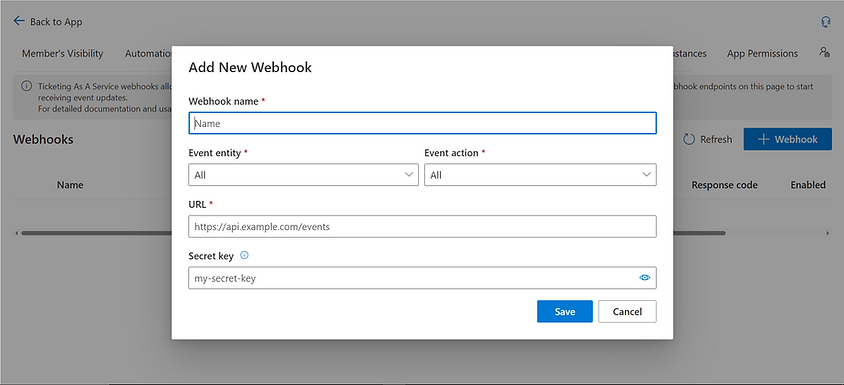
Configure Your Endpoint: An "Add New Webhook" pop-up will appear. As a developer, here is what these fields mean for your implementation:
-
Webhook name: A clear, descriptive name for your reference.
-
Event entity: The event group to listen to (Ticket, Alert, Comment, Attachment, or All).
-
Event action: The specific action under that event group that triggers the Webhook.
-
URL: This is your server's public endpoint. Ticketing will send a POST request to this HTTPS URL.
-
Secret key: This is your shared secret. You must create and securely store this complex key (for example, in your server's environment variables). It is used to validate that the request is authentic.
-
Enabled: Turns webhook delivery on or off without deleting the webhook configuration.
Event Entity Options
-
All: Receive every supported core webhook event.
-
Ticket: Ticket lifecycle and ticket field changes.
-
Alert: SLA, expected date, and idle alerts.
-
Comment: Ticket comment creation.
-
Attachment: Ticket attachment changes.
If you select All entity and All action, one webhook receives every supported core event.
Click Save. Your Webhook is now active and will begin sending payloads when the specified events occur.
Validating Data is Sent and Received
Once your Webhook is active, you can monitor its health directly from the Webhook list view in Ticketing as a Service. The Response code column is your primary indicator of success or failure.
Successful Delivery
When your endpoint receives the request and acknowledges it correctly, the Ticketing app will display a green status box. A green 201 box under "Response code" confirms that the connection works perfectly. It is proof that the data was not just received by the server, but accepted and processed correctly.
Failed Delivery(No Response)
If the Webhook fails to reach your server (for example, due to DNS issues, server timeout, or an incorrect URL), the system will not receive an acknowledgement.
Validating the X-Ticketing-Signature-256 (Security)
This is the most critical step. Do not trust the payload until you validate its signature. This process confirms the request came from your Ticketing instance and was not altered in transit. The signature is an HMAC SHA256 digest, computed using your Secret key and a combination of the delivery identifiers and the raw request body.
Important behavior:
-
The Secret key is the shared secret between Ticketing and the receiver.
-
The raw Secret key is not sent in webhook delivery headers.
-
Ticketing uses the saved Secret key to generate the X-Ticketing-Signature-256 header for each delivery.
-
The receiver uses that same saved Secret key to recompute the signature and verify it.
-
If Ticketing generates the Secret key, it is shown only once when the webhook is created and the receiver must store it safely.
Signature input format:
webhook-id.webhook-timestamp.raw_body
How Ticketing sends the signature:
-
Ticketing creates the webhook JSON payload.
-
Ticketing reads the saved Secret key for that webhook.
-
Ticketing generates a webhook-id and webhook-timestamp for the delivery.
-
Ticketing computes HMAC-SHA256(webhook-id + "." + webhook-timestamp + "." + raw_body, secret_key).
-
Ticketing sends the POST request with the JSON body and the generated X-Ticketing-Signature-256 header.
How your server validates the signature:
-
Read the raw request body exactly as it was received.
-
Read the webhook-id, webhook-timestamp, and X-Ticketing-Signature-256 headers.
-
Retrieve the same Secret key that was configured when the webhook was created.
-
Compute HMAC-SHA256(webhook-id + "." + webhook-timestamp + "." + raw_body, secret_key) on your side.
-
Compare your computed value with the received header value using a timing-safe comparison.
If both values match, you can trust that the request came from Ticketing and that the payload was not modified in transit.
The X-Ticketing-Signature-256 header uses the format v1,<base64_signature> — for example: v1,xndERp5SYea2aDF4MeCl6QNt7VO+6acgFaATdUM55Vo=. The v1 prefix is the signature version, and the value after the comma is the Base64-encoded HMAC signature. Strip the v1, prefix before comparing.
TypeScript:
function validateHmac(
secretKey: string,
webhookId: string,
webhookTimestamp: string,
rawBody: string,
receivedHeader: string
): boolean {
const signatureInput = `${webhookId}.${webhookTimestamp}.${rawBody}`;
const computedHmac = crypto
.createHmac('sha256', secretKey)
.update(signatureInput)
.digest('base64');
// Strip the "v1," prefix before comparing
const receivedHmac = receivedHeader.startsWith('v1,')
? receivedHeader.slice(3)
: receivedHeader;
return crypto.timingSafeEqual(
Buffer.from(receivedHmac, 'base64'),
Buffer.from(computedHmac, 'base64')
);
}
C+:
public static bool ValidateHmac(
string secretKey,
string webhookId,
string webhookTimestamp,
string rawBody,
string receivedHeader)
{
var signatureInput = $"{webhookId}.{webhookTimestamp}.{rawBody}";
var keyBytes = Encoding.UTF8.GetBytes(secretKey);
var dataBytes = Encoding.UTF8.GetBytes(signatureInput);
using (var hmac = new HMACSHA256(keyBytes))
{
var computedHmacBytes = hmac.ComputeHash(dataBytes);
var computedHmac = Convert.ToBase64String(computedHmacBytes);
// Strip the "v1," prefix before comparing
var receivedHmac = receivedHeader.StartsWith("v1,")
? receivedHeader.Substring(3)
: receivedHeader;
return CryptographicOperations.FixedTimeEquals(
Encoding.UTF8.GetBytes(receivedHmac),
Encoding.UTF8.GetBytes(computedHmac)
);
}
}
Event Catalog
Ticketing as a Service supports the following webhook events, organized by entity.
Ticket Events
Event type ticket.created
ticket.updated
ticket.status_changed
ticket.resolved
ticket.assigned
When it is sent
A new ticket is created.
Any general ticket field changes (title, description, priority, expected date, custom fields, or tags).
Ticket status changes through a workflow transition. Includes previous status, new status, workflow target ID, transition label, and resolution when applicable.
Ticket moves into a resolved status that stops or disables SLA. May be sent together with ticket.status_changed.
Ticket assignee changes, including changes caused by automation.
`ticket.resolved` is not sent for every status named "Resolved." It is sent only when the target resolved status is configured to stop or disable SLA after resolution.
Alert Events
Event type
alert.sla_frt_breached
alert.sla_frt_escalated
alert.sla_rt_breached
alert.sla_rt_escalated
alert.expected_date
alert.idle
When it is sent
First response time SLA is breached.
First response time SLA escalation is triggered.
Resolution time SLA is breached.
Resolution time SLA escalation is triggered.
Expected date notification is triggered (approaching, due today, or overdue).
Ticket has had no activity for the configured idle threshold.
Comment Events
Event type
comment.created
When it is sent
A public comment or private/internal note is added to a ticket.
Attachment Events
Event type
attachment.added
attachment.archived
attachment.deleted
When it is sent
A file or link attachment is added to a ticket.
A ticket attachment is archived or hidden from active attachment lists.
A ticket attachment is permanently deleted by a Ticketing Owner.
A comment with text and an attachment may send both `comment.created` and `attachment.added`.
Payload Field Definitions
Every webhook delivery shares the same top-level envelope. Here is the definition of each field you will receive:
Field | Type | Description |
|---|---|---|
id | string | The unique identifier of this delivery event. |
event | string | The event type (for example, ticket.created or alert.sla_rt_breached). |
timestamp | string | The time the event occurred, formatted as an ISO 8601 date string. |
version | string | The payload schema version (current: v1). |
tenantId | string | The unique identifier of the Microsoft 365 tenant. |
instanceId | string | The unique identifier of the Ticketing instance. |
data | object | Event-specific data. Always contains ticket, ticketUrl, and user. May also contain changes, status, comment, attachment, or alert depending on the event type. |
data.ticket | object | The current ticket entity, following the Ticketing GET /tickets/{ticketId} resource shape. |
data.ticketUrl | string | A reference to the ticket entity endpoint: /tickets/{ticket-guid}. |
data.user | object | The user who triggered the event. |
data.changes | array | Present on ticket.updated, ticket.assigned, and ticket.status_changed. Lists only the fields that changed, each with field, from, and to. |
data.status | object | Present on ticket.status_changed and ticket.resolved. Contains from, to, targetId, transitionLabel, and resolution when applicable. |
data.comment | object | Present on comment.created. Contains comment id, isPrivate, and source. |
data.attachment | object | Present on attachment events. Contains attachment metadata only. File content is not included. |
data.alert | object | Present on alert events. Contains alert-specific metadata relevant to the event type. |
The `description` field on the ticket object is stored internally in HTML format. In the webhook payload, HTML tags are stripped and only plain text is sent.
Receiving the Payload
Ticketing sends a POST request to your configured endpoint with the following headers and body.
Delivery Headers:
Header Content-Type
webhook-id
webhook-timestamp
X-Ticketing-Signature-256
X-Webhook-Event-Type
X-Webhook-Delivery-Attempt
Purpose
Always application/json.
Unique delivery identifier. Used as part of the signature input.
Delivery timestamp. Used as part of the signature input.
HMAC SHA256 signature for validation. Format: v1,<base64_signature>.
Example: v1,xndERp5SYea2aDF4MeCl6QNt7VO+6acgFaATdUM55Vo=. The v1 prefix is the signature version; the value after the comma is the Base64-encoded HMAC signature.
The webhook event type (for example, ticket.created).
The delivery attempt count.
Body: A JSON payload containing the event data, structured according to the event type.
Example Headers:
host: "your-own-domain"
content-type: application/json
webhook-id: "wh_evt_xxxxxxxxxxxxxxxx"
webhook-timestamp: "2026-06-02T10:00:00.000Z"
x-ticketing-signature-256: "a3f9c1d4e7b2...xxxxxxxxxxxxxxxx"
x-webhook-event-type: "ticket.created"
x-webhook-delivery-attempt: "1"
Payload Examples
The following samples show real webhook request bodies. Use these to understand the structure your endpoint will receive.
1.) Ticket Created
Description: When a new ticket is created, data.ticket contains the full ticket object and data.user identifies the creator.
Example Header:
{
"id": "evt_xxx_ticket_created",
"event": "ticket.created",
"timestamp": "2026-06-02T10:00:00.000Z",
"version": "v1",
"tenantId": "tenant-id",
"instanceId": "instance-id",
"data": {
"ticket": "ITicket",
"ticketUrl": "/tickets/ticket-guid",
"user": "IUser"
}
}
2.) Ticket Updated
When a ticket is updated, data.changes lists only the fields that changed. Unchanged fields are not included.
Example Header:
{
"id": "evt_124_ticket_updated",
"event": "ticket.updated",
"timestamp": "2026-05-22T03:05:00.000Z",
"version": "v1",
"tenantId": "tenant-id",
"instanceId": "instance-id",
"data": {
"ticket": "ITicket",
"ticketUrl": "/tickets/ticket-guid",
"user": "IUser",
"changes": [
{
"field": "priority",
"from": "Important",
"to": "Urgent"
},
{
"field": "description",
"from": "-",
"to": "User cannot login"
}
]
}
}
3.) Ticket Status Changed
When a ticket moves through a workflow transition, data.status includes the transition details. data.changes may also reflect the status field change.
Example Header:
{
"id": "evt_xxx_ticket_status_changed",
"event": "ticket.status_changed",
"timestamp": "2026-06-02T10:00:00.000Z",
"version": "v1",
"tenantId": "tenant-id",
"instanceId": "instance-id",
"data": {
"ticket": "ITicket",
"ticketUrl": "/tickets/ticket-guid",
"user": "IUser",
"changes": [
{
"field": "status",
"from": "In Progress",
"to": "Resolved"
}
],
"status": {
"from": "In Progress",
"to": "Resolved",
"targetId": "Resolved",
"transitionLabel": "Resolve Ticket",
"resolution": "fixed",
"hasComment": true,
"comment": "Resolved after investigation",
"additionalKeys": {
"resolutionCode": "fixed"
}
}
}
}
`additionalKeys` is only included if the custom workflow transition provides approved extra fields. Internal workflow rules and conditions are excluded.
4.) Ticket Resolved
Sent when the target status is configured to stop or disable SLA after resolution. May be sent alongside ticket.status_changed.
Example Header:
{
"id": "evt_124_ticket_resolved",
"event": "ticket.resolved",
"timestamp": "2026-05-22T03:05:00.000Z",
"version": "v1",
"tenantId": "tenant-id",
"instanceId": "instance-id",
"data": {
"ticket": "ITicket",
"ticketUrl": "/tickets/ticket-guid",
"user": "IUser",
"status": {
"from": "In Progress",
"to": "Resolved",
"targetId": "Resolved",
"transitionLabel": "Resolve Ticket",
"resolution": "fixed"
}
}
}
5.) Ticket Assigned
When a ticket's assignee changes. data.changes contains only the assignment field.
Example Header:
{
"id": "evt_xxx_ticket_assigned",
"event": "ticket.assigned",
"timestamp": "2026-06-02T10:00:00.000Z",
"version": "v1",
"tenantId": "tenant-id",
"instanceId": "instance-id",
"data": {
"ticket": "ITicket",
"ticketUrl": "/tickets/ticket-guid",
"user": "IUser",
"changes": [
{
"field": "assignee",
"from": null,
"to": "Support Agent"
}
]
}
}
6.) Comment Created
Sent when a public comment or private/internal note is added to a ticket.
Example Header:
{
"event": "comment.created",
"data": {
"ticket": "ITicket",
"ticketUrl": "/tickets/ticket-guid",
"user": "IUser",
"comment": {
"id": "comment-id",
"isPrivate": false,
"source": "web"
}
}
}
7.) Attachment Added
Sent when a file or link is attached to a ticket. The payload contains attachment metadata only. File content is not included.
Example Header:
{
"id": "evt_xxx_attachment_added",
"event": "attachment.added",
"timestamp": "2026-06-02T10:00:00.000Z",
"version": "v1",
"tenantId": "tenant-id",
"instanceId": "instance-id",
"data": {
"ticket": "ITicket",
"ticketUrl": "/tickets/ticket-guid",
"user": "IUser",
"attachment": {
"id": "attachment-id",
"filename": "error-screenshot.png",
"caption": "Login error screenshot",
"createdDateTime": "2026-06-02T10:00:00.000Z",
"createdBy": "user-id",
"isArchive": false,
"isHyperlink": false,
"isImage": true,
"source": "comment_file_attachment"
}
}
}
8.) Attachment Archived
Sent when an attachment is soft-deleted. For attachment.deleted, the object follows the same shape but uses deletedBy and deletedAt.
Example Header:
{
"event": "attachment.archived",
"data": {
"ticket": "ITicket",
"ticketUrl": "/tickets/ticket-guid",
"user": "IUser",
"attachment": {
"id": "attachment-id",
"filename": "error.png",
"isImage": true,
"source": "file",
"archivedBy": "MOD Administrator",
"archivedAt": "2026-05-22T03:04:00.521Z"
}
}
}
9.) SLA Alert: Breach
Sent when an SLA deadline is breached. The alert.source field indicates frt (first response time) or rt (resolution time).
Example Header:
{
"event": "alert.sla_rt_breached",
"data": {
"ticket": "ITicket",
"ticketUrl": "/tickets/ticket-guid",
"user": "IUser",
"alert": {
"source": "rt",
"deadlineTime": "2026-05-22T03:00:00.000Z",
"detectedAt": "2026-05-22T03:04:00.521Z"
}
}
}
10.) SLA Alert: Escalation
Sent when SLA escalation is triggered. Contains the original SLA deadline alongside the escalation deadline and the time it was escalated.
Example Header:
{
"event": "alert.sla_rt_escalated",
"data": {
"ticket": "ITicket",
"ticketUrl": "/tickets/ticket-guid",
"user": "IUser",
"alert": {
"source": "rt",
"slaDeadline": "2026-05-22T03:00:00.000Z",
"escalationDeadline": "2026-05-22T04:00:00.000Z",
"escalatedAt": "2026-05-22T04:01:00.000Z"
}
}
}
11.) Expected Date Alert
Sent when the expected date notification is triggered. The stage field indicates whether the ticket is approaching, due today, or overdue.
Example Header:
{
"event": "alert.expected_date",
"data": {
"ticket": "ITicket",
"ticketUrl": "/tickets/ticket-guid",
"user": "IUser",
"alert": {
"stage": "overdue",
"expectedDate": "2026-05-21",
"daysOverdue": 1
}
}
12.) Idle Ticket Alert
Sent when a ticket has had no activity for the configured idle threshold.
Example Header:
{
"event": "alert.idle",
"data": {
"ticket": "ITicket",
"ticketUrl": "/tickets/ticket-guid",
"user": "IUser",
"alert": {
"source": "idle",
"daysIdle": 1
}
}
}